



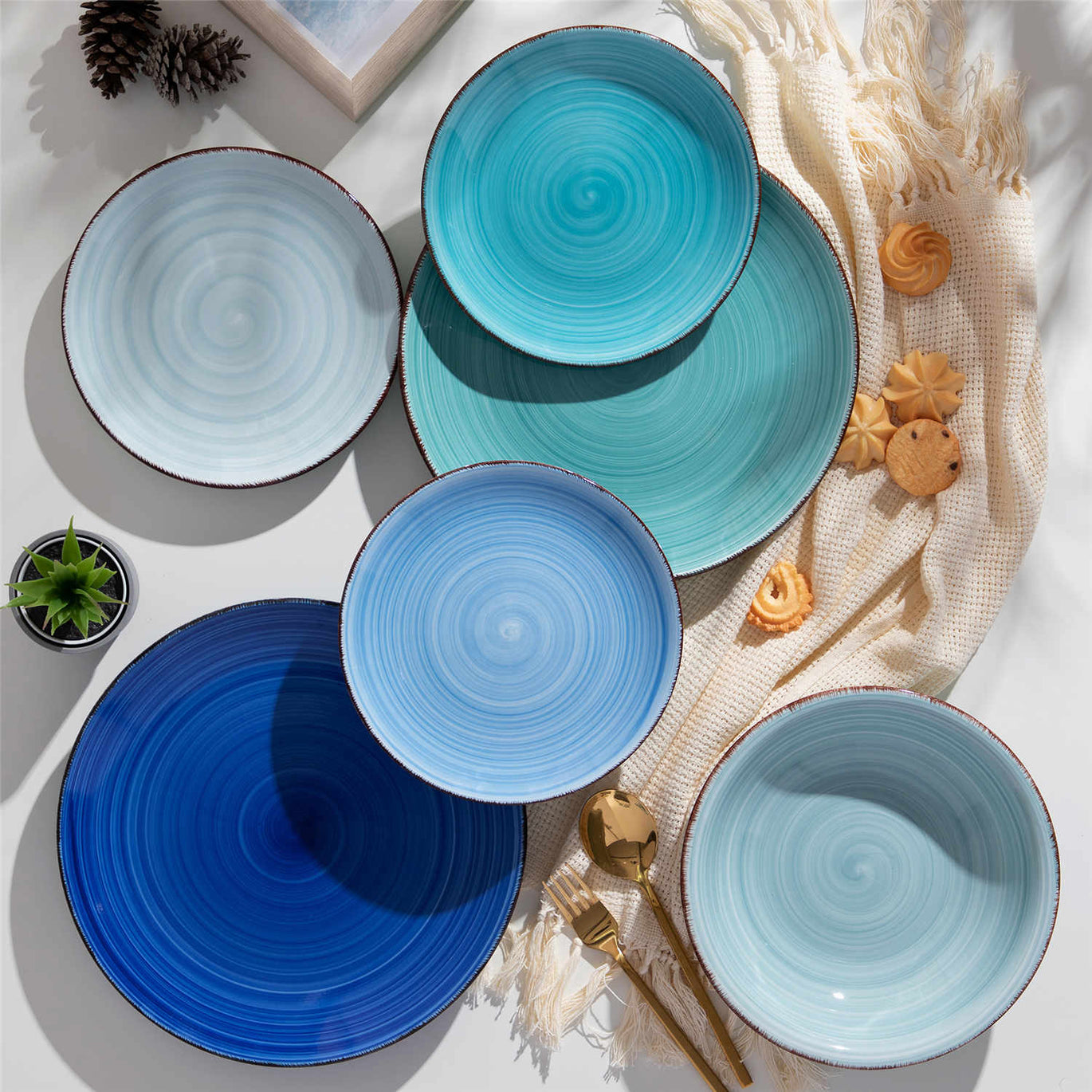


Essential Color Calibration Tools for Photographing Colorful Ceramics

When you photograph ceramics, color is not a supporting actor; it is the star of the show. Glazes shift from cool aqua to warm turquoise with just a nudge in white balance. Matte finishes swallow light while glossy rims kick highlights straight into your lens. If your color is off, that lovingly crafted set of plates can look like a completely different product online or in print.
That is where color calibration tools step in. Used well, they let your camera, software, and screen agree about what “sage green bowl” and “coral rim” actually mean, so your colorful tabletops look honest, vibrant, and repeatable from shoot to shoot.
In this guide, we will walk through essential calibration tools and workflows, drawing on practices from cultural heritage labs, commercial product studios, and color management experts. The goal is very practical: help you decide which tools you really need for photographing ceramics and how to use them without turning every session into a science experiment.
What Color Calibration Actually Does
Color calibration is the process of making different parts of your workflow speak the same color language. A guide from StudioBinder describes two broad flavors. Objective calibration aims for true‑to‑life, colorimetrically accurate reproduction. Subjective calibration aims for whatever looks good artistically, even if it departs from reality.
For ceramics, you usually care about both. A handmade mug set sold online needs objective accuracy so buyers see the right glaze color, but you also want the freedom to nudge warmth or contrast for mood. Calibration tools give you a reliable, repeatable starting point so your “creative look” sits on top of trustworthy base color, rather than fighting unknown biases from your camera, light, and monitor.
Several key concepts run through the tools described in the research notes:
White balance compensates for the color cast of light so neutral surfaces appear neutral. Exposure primarily controls brightness, as long as you avoid clipping. Camera profiling aligns your camera’s behavior with a known reference chart so reds, yellows, and other hues are rendered more faithfully. Monitor calibration ensures that when your software says “this pixel is a certain color,” your screen displays that color as accurately as the panel allows. Together, these pieces form a pipeline from ceramic on the table to image on the screen that is far more predictable than “shoot and hope.”
Neutral Gray and White Balance Cards: The Small Giants
If you invest in only one dedicated color tool for ceramics, make it a neutral card.
What a Gray Card Really Is
Multiple sources agree on the core definition. A gray card is a flat, neutral reference surface, typically calibrated to reflect about 18 percent of the light that hits it. Camera meters are designed with that midtone in mind. When you meter off an 18‑percent gray card in the same light as your subject, you get an exposure that keeps both shadows and highlights in a balanced range instead of letting bright porcelain or dark stoneware fool the meter into under‑ or overexposing.
Because a gray card is designed to be neutral in color, it can also serve as a white balance reference. Guides from PRO EDU, Pixelz, and Great Big Photography World all emphasize the same maneuver. Place the card in the same light as your subject, photograph it, and then either set a custom white balance in camera from that frame or use the eyedropper in software like Lightroom or Photoshop to define neutral and synchronize that white balance across all related images.
Neutral Card versus Generic 18 Percent Card
A thread on Lightroom Queen adds an important nuance. An 18‑percent gray card is engineered first for exposure, not for perfect color neutrality. Its red, green, and blue reflectances may not be exactly equal. Using such a card as a white balance target can bake its subtle color bias into your entire shoot, which is like asking your camera to think a slightly green or slightly warm card is “true gray.”
Purpose‑built neutral white balance cards, such as WhiBal or the dedicated neutral panels in color checker systems, are manufactured to be spectrally neutral and are better suited as color references. In practice, many ceramic photographers use a small neutral card for white balance and treat classic 18‑percent cards primarily as exposure helpers.
Simple Ceramic Workflow with a Gray or Neutral Card
Imagine you are photographing a colorful brunch spread of ceramics: turquoise mugs, terracotta plates, a glossy white platter. Start by placing a neutral card on the table where the main pieces will sit, making sure it is lit by the same window or studio lights that will hit your ceramics. Angle it slightly toward the camera to avoid specular reflections.
You can then follow one of two paths, both supported by the research notes.
One approach, favored in cultural heritage workflows described by UCLA’s color calibration guide, is to shoot in RAW, capture a frame with the card, and later use the white balance eyedropper in Lightroom Classic on that frame. You then synchronize the “Basic > White Balance” setting across all images from that lighting batch.
The other approach, detailed in several gray card tutorials, is to set a custom white balance in camera. Place the card in the scene, fill most of the frame with it, take a reference shot, then use your camera’s custom white balance function to tell the camera “this is neutral.” That is particularly useful if you shoot JPEGs or want to see reasonably accurate color on the back of the camera while composing tabletops.
On the plus side, cards are inexpensive, portable, and fast. Guides note that simple gray cards can start under about ten dollars, and anecdotal reports (such as a beginner praising a Spyder gray card as their best purchase) show how quickly they improve perceived color. The limitation is that they correct global color casts but cannot fix deeper issues in how your specific camera renders particular hues like saturated reds or aqua glazes. For that, you need richer targets.

Color Checker and Multi‑Patch Charts: Richer Color References
Where a gray card gives you a single neutral tone, color checker charts provide a grid of colored and gray patches with known reference values. These tools let you correct more than overall temperature and tint; they allow you to tune how your camera translates subtle glaze colors.
Types of Color Charts
The notes mention several forms.
There are compact four‑panel cards used by archaeologists in the field. These offer a few calibrated patches and serve as visual quality‑control markers. A discussion from an archaeological imaging context stresses that such simple cards are excellent for checking whether images have been processed correctly, especially when gear and lighting vary a lot, but they are too limited to support rigorous color calibration across an entire archive.
At the other end of the spectrum, there are 24‑patch charts such as the ColorChecker Passport. According to multiple sources, including Brent Bergherm’s calibration article and UCLA’s guide, these charts are designed specifically for building camera profiles. A Crawford Photo School comparison notes that the ColorChecker Passport produced the best color balance among several cards tested, although it is relatively expensive and the painted squares must be kept dry and clean.
Some systems combine white balance squares and colored patches. The Passport, for example, includes a page of white balance reference patches alongside the 24‑patch color grid and a larger neutral card. For ceramics, that means you can set white balance from a neutral patch and then rely on the full grid to correct how your camera renders the nuanced blues and greens in your glazes.
How Color Checkers Fit into a Ceramics Workflow
A typical workflow, drawn from Brent Bergherm’s article and the UCLA cultural heritage guide, looks like this when adapted to ceramics.
You arrange your ceramic set and light it as you intend to shoot. Before photographing the actual pieces, you place the ColorChecker chart where the ceramics will be, facing the camera and lit by the same lights. You make a correctly exposed frame, sometimes bracketing slightly or using the included gray patch and histogram to ensure at least one exposure is perfect.
Later, in Lightroom Classic, you convert the chart image to DNG and use dedicated ColorChecker Camera Calibration software. The software aligns the chart patches and generates a custom camera profile, often saved as a .dcp file, that accounts for how your particular camera and lens see that lighting. On restarting Lightroom, you can choose this profile in the Develop module and then synchronize “Treatment & Profiles” across all images from the same session.
The payoff is subtle but important. An Adobe engineer’s profiling guide for Camera Raw reports noticeably improved reproduction of reds and yellows after profiling, with better consistency between different camera bodies. For colorful ceramics, that translates into more faithful terracotta, less washed‑out saffron, and blues that sit where you expect on the spectrum.
Comparing Basic Cards and Color Checkers
You can think of neutral cards and color checkers as sitting on the same shelf but at different levels of precision and investment.
Here is a concise comparison tailored to ceramic work:
Tool type |
Best use with ceramics |
Key strengths |
Tradeoffs and limitations |
Neutral gray or white card |
Everyday tabletop shoots where you mainly need clean white balance |
Very inexpensive, quick, excellent for removing color casts and setting exposure |
Limited to global white balance and midtone exposure; does not refine how specific hues are rendered |
Four‑panel reference card |
Field or travel documentation of ceramic pieces |
Small, lightweight, good for visual consistency checks |
Too few patches for robust profiling; best treated as a reference marker rather than a profiling tool |
24‑patch ColorChecker |
Product‑style ceramic shoots and repeatable e‑commerce sessions |
Supports camera profiling and more accurate overall color reproduction |
More costly, physically delicate; requires software and an extra step to build and apply custom profiles |

Camera Profiling Software: Teaching Your Camera to See Ceramics Better
Color charts become far more powerful once you bring profiling software into the mix. Several of the sources detail workflows for turning a ColorChecker shot into a custom camera profile that corrects how your RAW converter interprets sensor data.
Modern DNG‑Based Profiles
Brent Bergherm’s article on camera calibration and the UCLA guide both describe using the ColorChecker Camera Calibration software to generate profiles for Lightroom Classic and Adobe Camera Raw. The process is straightforward once you have one good chart shot.
You photograph the chart in the same light as your ceramics, convert that RAW file to DNG, then either invoke a Lightroom plug‑in or open the DNG directly in the calibration software. The software reads the chart patches, compares them to known reference values, and writes a .dcp profile that lives in the Camera Raw profiles folder. After restarting Lightroom, that profile appears in the Profile Browser, ready to be applied to your ceramic images.
You can create separate profiles for different lighting conditions. Brent’s example uses one profile for cloudy daylight and another for indoor tungsten. That maps well onto a ceramic workflow in which you might have one profile for soft window light and another for a continuous LED setup in your studio. The recommendation is to profile each meaningful combination of camera, lens, and lighting when color accuracy is critical.
An older but still insightful guide by Eric Chan describes a much more manual process for Camera Raw 3.x, using the same 24‑patch chart but adjusting calibration sliders by hand to match numeric targets. That article later recommends the newer DNG Profile Editor as a faster, more accurate alternative because it optimizes all 24 patches simultaneously using lookup tables. For most ceramic photographers, modern ColorChecker‑to‑DNG workflows offer more precision with far less effort than manual slider tweaks.
When Profiling Is Worth It for Ceramics
Not every ceramic shoot needs this level of rigor. An Fstoppers article on color checker cards points out that modern cameras from reputable brands already ship with very good color profiles. For everyday portrait or product work, neutralizing obvious color casts is usually more important than chasing laboratory‑grade accuracy.
Camera profiling shines when the stakes are higher. Cultural heritage teams documenting artifacts, as in UCLA’s work, rely on Calibrite or X‑Rite charts plus profiling to ensure that photographed objects remain a trustworthy reference years later. The same logic applies if you are photographing a flagship tableware line for a catalog, where glaze color is part of the brand and must be consistent across seasons and cameras.
In those cases, using a ColorChecker and profile for each major lighting setup turns your colorful ceramic images into data you can trust, not just pretty pictures that might drift slightly warmer or cooler whenever you change gear.
Color Meters: Measuring Light for Exacting Control
Color meters are more specialized tools but worth understanding if you often fight tricky lighting over reflective ceramics.
A Crawford Photo School tutorial defines a color meter as a handheld light meter that measures the color of light, not just its brightness. Modern three‑color meters have separate sensors for red, green, and blue and output both a color temperature and a color correction value that corresponds to the green–magenta “tint” control in Lightroom and Photoshop.
You use a color meter much like an incident light meter. Stand at the position of your ceramic subject, point the meter’s diffuser back toward the camera, and take a reading. The meter might tell you, for example, that your LED panels are at a certain color temperature with a specific green bias. You then type those temperature and tint numbers into your RAW converter’s white balance controls, and your starting point should be very close to neutral.
Crawford notes a few important caveats. Older “two‑color” meters that only measure red and blue cannot provide the green–magenta correction, tend to be inaccurate with age, and are not recommended. Modern digital meters such as certain Sekonic and Minolta models are vastly better but expensive, often in the $800 to $1,500 range, with used units still needing recalibration that can cost around one hundred dollars.
For most ceramic photographers working in a controlled studio with a single dominant light source, a color meter may be overkill compared to a gray card and a ColorChecker. However, if you combine flash with ambient light or mix different types of fixtures over glossy glazes, a color meter can save you from guesswork and give you confidence that your white balance settings match real‑world measurements.

Monitor Calibration: Because Your Screen Can Lie
Even the best capture‑side calibration is wasted if your monitor is not telling the truth. A B&H buying guide on color calibration emphasizes that grading images on an uncalibrated display can make projects look too light or dark or skewed in color on other systems, harming both audience response and professional reputation.
Hardware monitor calibrators measure how your display actually behaves and build a profile so the operating system and color‑aware applications can correct its output. The notes mention several families of devices, including i1Display Pro units loaned by an imaging center, X‑Rite i1 Basic Pro 3, and Datacolor SpyderPro probes. Software steps through a sequence of colored patches while the sensor reads the screen, and then it writes a profile describing how to adjust signals so that displayed colors match standard expectations as closely as the panel allows.
The guide stresses that calibration cannot turn a low‑spec, limited‑gamut panel into a reference‑grade display. It also highlights the environment. You get the best results working in a relatively dark, neutral room, avoiding mixed color‑temperature light sources and bright reflections on the screen. Surfaces around your monitor ideally should be a mid‑gray rather than deep black or saturated colors, because your eye adapts to the surroundings and that adaptation affects how you judge glaze colors and whites.
Institutions like the Imaging Center described in the notes treat monitor calibration gear as serious technical equipment, with reservation systems, loan limits, and penalties for misuse. That is a good reminder that, even in a playful tabletop studio, calibrating your monitor a few times a year (or more often if your display drifts) is one of the highest‑leverage steps you can take to make sure what you see when editing your ceramics is close to what others will see.
Software White Balance and Curves: Rescue for Imperfect Shoots
Sometimes you do not have the luxury of reshooting your ceramics with ideal calibration gear. Maybe the pieces have been shipped, or you are working through an archive of older images. In those situations, software tools combined with any available reference card can still bring discipline to your color.
An Adobe Photoshop discussion on color‑balancing field photos outlines a robust method based on Curves adjustment layers and a reference card that includes black, white, and neutral gray swatches. The recommended steps are to set the eyedropper sample size to an 11 by 11 pixel average to avoid noise, then use the black eyedropper on the black swatch, the white eyedropper on the white swatch, and the gray eyedropper on a designated neutral gray square.
This procedure forces the software to treat those points as true black, true white, and true neutral, adjusting the curve for each channel in the process. When the card and subject are in the same plane under the same illumination, repeating this process for each usable image yields consistent color and contrast across the dataset, good enough to make RGB measurements meaningful even if it is not perfect scientific colorimetry.
The author cautions that images where the reference card is lit differently than the subject or where mixed lighting cannot be disentangled should be considered unsuitable for precise analysis. That principle maps directly onto ceramics. If part of your plate stack sits in warm lamplight while the card and another piece are lit by cool window light, no amount of post‑production gymnastics will make all of them objectively correct simultaneously.
For negative film scans of ceramics, a similar idea appears in a Film Shooters Collective article. The author scans a frame containing a white balance card under identical scanner settings, uses curves eyedroppers in Photoshop to correct color once, and then applies that same correction to a series of frames shot under the same lighting. Whether you shoot digital or film, reference cards plus consistent manual settings let you batch‑correct ceramic images more confidently.
Balancing Precision and Practicality for Ceramic Work
By now the toolkit may sound crowded: gray cards, neutral targets, color checkers, profiling software, color meters, monitor calibrators, and sophisticated software workflows. The key to keeping your tabletop sessions joyful rather than bogged down is to choose the right level of rigor for the job.
The Fstoppers article on color checker cards makes a strong argument that many photographers overestimate how much calibration they need for everyday work. Modern camera profiles from trusted brands are already well engineered. Lighting modifiers like softboxes and umbrellas subtly shift color temperature, but usually not enough for humans to notice, let alone complain.
For typical product or commercial photography, they argue, your main goal should be neutralizing obvious color casts rather than achieving absolute, laboratory‑grade accuracy. Simplified references such as gray cards or compact swatch cards are usually adequate as long as you handle them carefully and protect them from fingerprints, fading, and physical damage.
On the other hand, work that resembles cultural heritage documentation or art reproduction justifies extra effort. UCLA’s guidance for photographing cultural objects emphasizes shooting RAW, including white or gray cards and a ColorChecker on site, maintaining consistent lighting within each batch, and using ColorChecker Camera Calibration software to build dedicated DNG profiles. With ceramics destined for archival collections, museum catalogs, or critical conservation records, that is exactly the level of care you want.
For most ceramic tableware photographers, a good compromise looks like this. Use a neutral card for every new lighting setup so you have a reliable white balance reference. Build at least one ColorChecker‑based camera profile for each major lighting scenario in your studio and use it when color really matters, such as for product listings or print campaigns. Keep your main editing monitor calibrated with a hardware probe, and work in a neutral environment so your judgment stays sharp. You can always add tools like color meters later if your lighting becomes more complex.
A Sample Color Workflow for a Colorful Ceramic Tabletop
To see how everything dovetails, imagine a full workflow for a single ceramic shoot in your studio.
You begin by calibrating your monitor with a device such as the i1Display Pro or similar hardware described by the Imaging Center and B&H guides. The calibration software asks you to lower ambient light, runs through a sequence of colors, and produces a fresh profile so your editing environment is trustworthy.
Next, you set up your ceramics on a table: stacks of plates, bowls, and mugs in coordinated palettes. You choose a single lighting arrangement, perhaps large LED panels or strobes bounced from white walls. Before styling props, you place a neutral card and a ColorChecker chart where the ceramics will be, making sure both face the camera and see the same light as the pieces.
You photograph the chart and card, checking the histogram to ensure nothing is clipped. Then you remove the chart, bring in food or textiles as needed, and shoot your ceramic story, trying not to change lighting, exposure, or camera position more than necessary.
Back at the computer, you import everything into Lightroom Classic. You practice the workflow recommended by UCLA and Brent Bergherm. All RAW images from the session go into a single folder in one catalog. You identify the best ColorChecker frame, convert it to DNG if needed, and run it through the ColorChecker Camera Calibration software to create a custom profile. After restarting Lightroom, you select that profile in the Develop module for the entire shoot.
You then choose one frame that includes the neutral card, use the white balance eyedropper tool on that card to set white balance, and synchronize that setting across all images from the same lighting batch. If necessary, you tweak exposure and contrast on a representative image, then sync those settings as well.
At this point, your colorful ceramics sit on a calibrated monitor with capture‑side color that has been normalized through both profiling and white balance. Now you are free to lean into your creative side: perhaps gently warming the highlights, adding a little clarity to bring out glaze texture, or applying a consistent tone curve across the series. Because the technical foundation is solid, your stylistic choices will be repeatable from collection to collection.
If you ever find yourself working with older ceramic images that lack chart shots, you can still apply some of the Photoshop Curves techniques from the Adobe discussion, using any card with black, white, and gray patches as a rescue reference to stabilize color across that limited dataset.

Learning More without Getting Lost
Color management can quickly turn into a rabbit hole, but curated resources help keep it practical. A digital library platform described in the notes, for example, provides structured access to Andrew Rodney’s “Color Management for Photographers” alongside other technical references. That service emphasizes quality control and organized indexing, so when you go deeper into topics like profiles, rendering intents, or working spaces, you can rely on the material being authentic and up to date.
Similarly, academic work on color calibration of scanners and imaging systems, such as theses and conference papers mentioned in the references, situates your ceramic practice within a broader field. Even if you never implement polynomial transformations or multispectral capture, it is reassuring to know that the same principles you apply with humble gray cards and charts are backed by serious color science.
FAQ: Color Calibration for Ceramics
Do I really need a ColorChecker for photographing ceramics, or is a gray card enough?
For many ceramic photographers, a neutral gray or white card plus a calibrated monitor deliver a big improvement in consistency at very low cost. As the Fstoppers article notes, modern camera profiles are already quite good, and much of your day‑to‑day effort should focus on removing obvious color casts. A ColorChecker becomes worthwhile when your ceramics need to match reference colors very closely across different cameras and sessions, or when you are working in contexts similar to cultural heritage work where objective fidelity is part of the job.
How often should I recalibrate my monitor if I edit a lot of ceramic images?
The B&H guide stresses that displays drift over time and even throughout a single day as they warm up. While it does not prescribe a specific schedule, frequent recalibration is recommended to keep your grading environment trustworthy. If you edit ceramics regularly, calibrating every few weeks or at least every couple of months is a sensible habit, especially as your display ages or if you notice color or brightness inconsistencies.
What if I only shoot JPEGs of my ceramics instead of RAW?
Gray cards and neutral targets are still very helpful, and in some ways even more important, for JPEG shooters. Several gray card guides highlight using in‑camera custom white balance based on a gray card frame. Because JPEGs bake color decisions in camera, setting a precise white balance before you shoot gives you cleaner files and reduces the need for aggressive corrections later. You will not have the same latitude as with RAW and DNG‑based profiling, but a neutral card and a calibrated monitor can still make your ceramic JPEGs significantly more accurate and consistent.
Color is where your ceramics whisper their personality. With a few well‑chosen calibration tools and a simple, repeatable workflow, you can let those glazes speak in their own true voice while still leaving plenty of room for playful, artful styling on the colorful tabletop stage.
References
- https://www.academia.edu/9970727/COLOR_CALIBRATION_OF_SCANNERS_USING_POLYNOMIAL_TRANSFORMATION
- https://dal.ucla.edu/color-calibration-and-white-balancing/
- https://campus.collegeforcreativestudies.edu/imaging-center/tag/color-management/
- https://people.csail.mit.edu/ericchan/dp/acr/
- https://www-vlsi.stanford.edu/people/alum/pdf/0404_Neel_Joshi_Color_Calibration_MS.pdf
- https://admisiones.unicah.edu/virtual-library/4spuYE/7OK133/color_management_for__photographers_andrew__rodney.pdf
- https://rucore.libraries.rutgers.edu/rutgers-lib/70401/PDF/1/
- https://www.photoup.net/learn/the-secret-weapon-of-the-gray-card-in-real-estate-photography
- https://www.digitalphotomentor.com/how-to-use-a-gray-card-for-custom-white-balance-and-metering/
- https://www.filmshooterscollective.com/analog-film-photography-blog/color-correcting-film-mark-schlocker
Tu pourrais aussi aimer
Stern Ensemble de vaisselle 16 pièces
- €84,95
€96,95- €84,95
- Unit price
- pour
-
Blue
-
Green
-
Red
-
Grey
Simi Ensemble de vaisselle de 24 pièces
- €96,95
€129,95- €96,95
- Unit price
- pour
Bonita Service de table 18 pièces
- À partir de €60,95
€74,95- À partir de €60,95
- Unit price
- pour
-
Blue
-
Multicolor
Service de vaisselle étoilé 16 pièces
- €84,95
€86,95- €84,95
- Unit price
- pour
-
Blue
-
Green
-
Red
-
Gradient Green